

3. complete all search parameters
How to Create a Fast Quotation in Freightools (All Modes of Transport)
This article explains how to use the Fast Quotation tool in Freightools to generate accurate pricing for shipments across any mode of transport — including Air, FCL, LCL, FTL, LTL, Rail, or multimodal combinations.
Throughout this guide we use FCL (Full Container Load) as an example only; the same logic applies to all other service mixes.
1) Accessing Fast Quotation from the Homepage
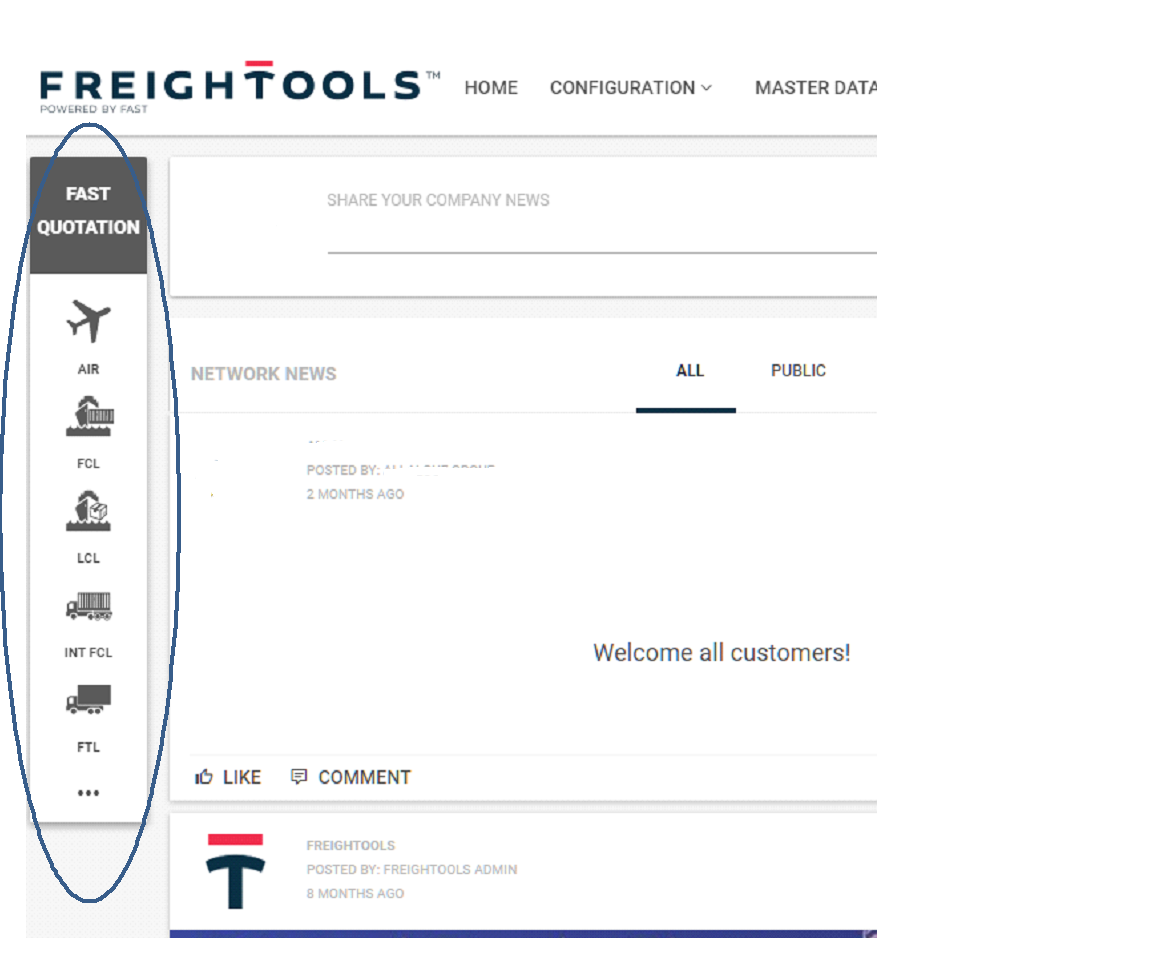
On the Freightools homepage, in the upper-left area directly beneath the Freightools logo, you will see the Fast Quotation toolbar.
This toolbar displays icons for available service mixes, such as:
Air
FCL
LCL
FTL / LTL (road)
Rail
Multimodal services
You can either:
Click directly on a service mix icon, or
Click the three dots (…) to open a full list of all available modes.
For this guide, click FCL.
2) The “Create Quotation” popup
After selecting a service mix, the Create Quotation popup opens. This is the main entry screen for all fast quotations.
It contains four primary location fields:
Origin
Master From (main transport hub — port for FCL, airport for Air, terminal for road/rail)
Master To
Destination
Minimum location rules
You do not need to fill all four fields, but you must include:
At least one origin-side location → Origin or Master From
At least one destination-side location → Master To or Destination
Valid examples:
Origin → Destination
Master From → Master To
Origin → Master To
Master From → Destination
Freightools builds the logical route automatically from your inputs.
3) Ports, terminals, and physical addresses
Master From / Master To
These fields are filtered by service mix:
FCL/LCL → seaports
Air → airports
Road/Rail → terminals, depots, or hubs
They come from Freightools’ system database.
Origin / Destination
You may select:
Your company’s saved addresses,
System addresses (ports, terminals, depots), or
Use Google Places autocomplete by clicking Broad Search.
Broad Search allows street-level locations for door-to-door quotations.
4) Local charges inclusion (when relevant)
For modes with a “master leg” (e.g., FCL, LCL, Air), you will see:
Include Origin Local Charges
Include Destination Local Charges
Both are checked by default.
This means your quotation includes:
The main transport leg, plus
Local charges at loading and discharge (e.g., THC, ISPS, terminal handling).
If you want to quote only the main transport leg, uncheck these boxes.
5) Currency selection
On the right side is the Currency field.
Default = your company currency or your last-used currency.
If you switch (e.g., EUR → USD), Freightools remembers this preference for next time.
6) Comparing multiple transport modes
Below the currency field is a multi-select Service Mix field.
You can compare different modes for the same shipment.
Example:
Enter cargo once
Select Air + FCL
Click Get Prices
→ Freightools returns air and ocean options side by side.
7) Incoterms, Customer, and Ready-to-Load Date
Incoterms
Choose the relevant Incoterm (EXW, FOB, CIF, DAP, etc.).
This affects which activities Freightools evaluates.
Customer (optional but powerful)
If you select a customer, Freightools returns:
Buying rates (your costs)
Selling rates (customer price based on rules or agreements)
If left empty, Freightools shows only buying rates.
There is also a “+” button next to the customer field to create a new customer directly from this screen.
Ready-to-Load Date
Defines which price validity period Freightools should use.
Example:
Today: January 31
Cargo ready: February 5
If you enter February 5, Freightools fetches only rates valid from that date onward.
8) Entering cargo — View Goods
Click View Goods to enter shipment details.
The fields depend on the service mix:
FCL → containers (20’, 40’, 40’HC)
LCL → pallets, boxes, cartons
Air → pieces, volumetric weight
Road/Rail → pallets, tons, meters, trucks, trailers
Common fields:
Freight unit type
Measurement unit (metric/imperial)
Quantity
Unit weight
Length, width, height
Freightools automatically calculates:
Unit volume
Total volume
Total weight
9) Cargo constraints / special requirements
A constraints panel allows you to define:
Unstackable cargo
Temperature control (and target temperature)
Insurance (goods value and insured value)
Dangerous goods (UN number, class, flashpoint)
Oversized cargo (left, right, front, back, height overhang)
These inputs influence pricing and feasibility.
10) Clicking “Get Prices” — what Freightools evaluates
When you click Get Prices, Freightools builds a logical route based on your inputs.
For an FCL example:
Pickup: Origin → Port of Loading
Ocean leg: Port of Loading → Port of Discharge
Delivery: Port of Discharge → Destination
For each leg, Freightools retrieves required pricing activities such as:
Road pickup
Ocean freight
Road delivery
Local port charges
Each activity is priced using your stored supplier (buying) agreements.
11) Buying vs Selling logic
Step 1 — Buying calculation
Freightools calculates your costs based on carrier agreements.
Step 2 — Selling calculation (if a customer is selected)
Freightools applies:
Customer-specific selling agreements, or
Markup rules by customer class or lane
This produces the final selling price.
12) Reviewing and filtering results
Once results appear, you can:
Sort by:
Total price
Transit time
Agreement expiry date
Filter by:
Carrier
Agreement type
Service category
Each result shows:
Carrier
Total buying
Total selling (if customer selected)
Charge breakdown
13) Selecting options
You may select one or multiple results to present alternatives to your customer.
After selecting, click:
👉 Create Sales Proposal
14) Final confirmation popup — “Create as Proposal”
A confirmation popup opens with three fields that must be completed before the proposal is created.
Field 1 — Customer (if not already selected)
If you did not select a customer earlier, you must choose one now.
You may:
Select an existing customer, or
Create a new one using the “+” button.
This customer becomes the owner of the proposal.
Field 2 — Customer Contact (optional but recommended)
You may select a specific contact belonging to that customer.
This determines:
Who the proposal is addressed to
Who receives the email if you send the proposal from Freightools.
If left empty, the proposal is tied only to the company.
Field 3 — Paying party: Exporter or Importer
Freightools pre-fills this automatically based on the customer’s country:
If the customer’s country matches the Origin, Freightools assumes Exporter.
If the customer’s country matches the Destination, Freightools assumes Importer.
You can override this if needed.
15) Creating the Sales Proposal
Once all three fields are filled, click:
👉 Create as Proposal
At this moment:
The popup closes
A new Sales Proposal screen opens
All addresses, goods, rates, buying, and selling calculations are already populated
The selected customer and contact are attached to the proposal
From here you can:
Edit charges
Adjust margins
Generate a PDF
Email the proposal to the customer
Track proposal status (sent, accepted, rejected)